Introduction
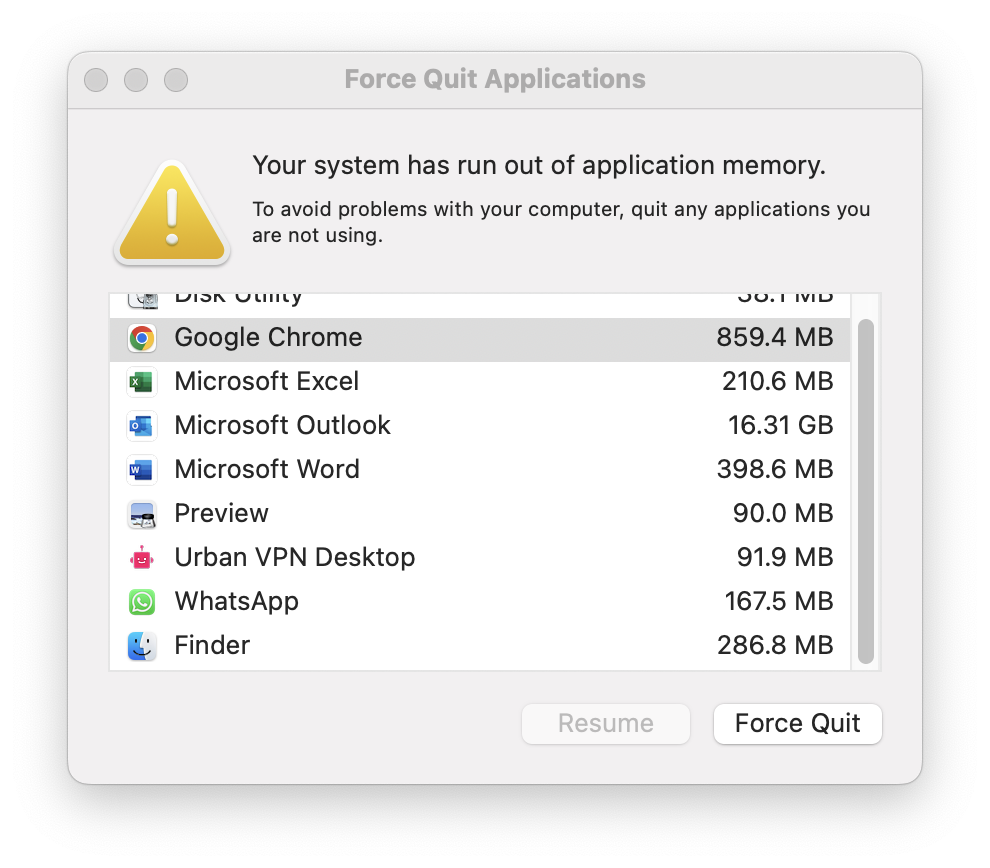
Have you ever been stopped in your tracks by the dreaded message: “Your system has run out of application memory”? This error can pop up out of nowhere, leaving your Mac struggling to perform even basic tasks. Whether you’re a tech-savvy individual or just a casual user, the good news is that you don’t have to be a computer expert to fix it. This guide walks you through eight simple steps to free up memory and get your system running smoothly again.
1. Quit Unnecessary Applications
Running too many apps at once can hog your system memory. Here’s how to identify and close them:
- Open Activity Monitor via Spotlight Search (
Cmd + Space). - Sort by Memory to see which apps are using the most resources.
- Quit the unnecessary apps by selecting them and clicking X.
2. Restart Your Mac
A quick reboot can clear up temporary memory issues:
- Save your work and shut down your Mac.
- Turn it back on, and you may notice significant improvements.
3. Update macOS
Outdated software can sometimes cause memory management problems:
- Go to System Settings > General > Software Update.
- Install the latest updates to ensure optimal performance.
4. Reduce Browser Tabs and Extensions
If you’re a heavy browser user, too many tabs or extensions can eat up memory:
- Close unnecessary tabs, especially in resource-heavy browsers like Chrome.
- Disable or remove unused extensions via your browser settings.
5. Free Up Disk Space
Low disk space can also contribute to memory issues. Here’s how to clear it up:
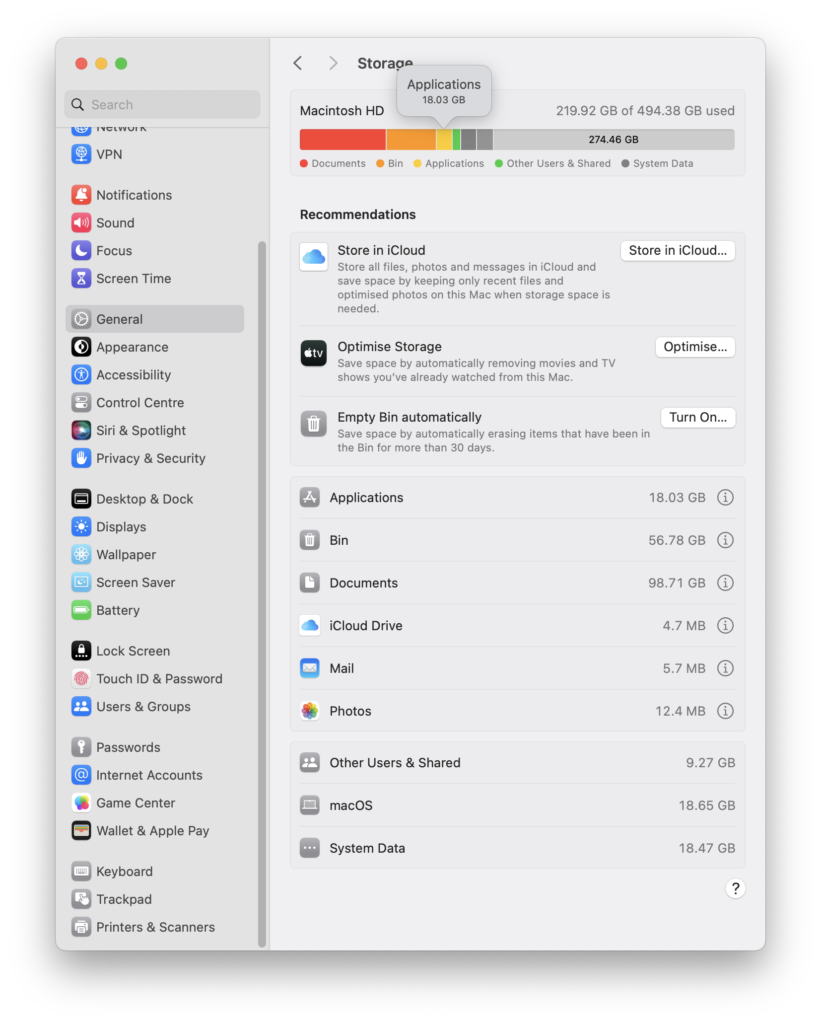
- Check storage by going to Apple Menu > About This Mac > Storage.
- Delete old files, empty the trash, and consider using Manage Storage recommendations.
6. Use Optimized Storage Features
Enable macOS features to manage storage:
- Store files in iCloud by going to System Settings > Apple ID > iCloud.
- Let macOS automatically remove older files by selecting Optimize Storage in the Storage section.
7. Increase Virtual Memory
Virtual memory uses your hard drive as temporary RAM. To make it work efficiently:
- Ensure sufficient free space on your disk for macOS to allocate virtual memory.
8. Upgrade Your RAM (If Possible)
If your Mac model allows it, upgrading physical RAM can significantly enhance performance:
- Check your model’s compatibility with RAM upgrades on the Apple website.
- Consider professional help for installation.
Conclusion
The “Your system has run out of application memory” error can feel overwhelming, but it’s usually a sign to tweak how you manage your Mac. Whether it’s as simple as closing apps or upgrading RAM, these steps should help you keep your system running efficiently. Regular maintenance and awareness of your system’s limits go a long way toward avoiding such issues in the future.