
Ever feel like your MacBook has a mind of its own—especially when it comes to typing? You’re halfway through a sentence and suddenly you’re like, “Whyy is myyy keyboarrd doing thisss?”
Yep, we’ve all been there.
This frustrating little gremlin, where your keyboard starts typing double letters, or should we call it the Macbook keyboard double typing issue, extra spaces, or just feels off, is surprisingly common. Especially if you’ve got one of those MacBooks with the infamous butterfly keyboard. But the good news? You don’t need to panic or rush to the nearest Apple Store—at least not yet.
Let’s walk through some simple (and slightly geeky) things you can try right now to fix the problem.
First of All, Why Is This Even Happening?
Before we dive into fixes, let’s understand what’s possibly going wrong.
-
Too sensitive settings: Your keyboard repeat rate might be set way too high, causing one press to register multiple times.
-
macOS bugs: Sometimes it’s just your Mac being moody—an outdated OS can mess with peripherals, including your keyboard.
-
Dust bunnies under the hood: A tiny bit of grit or dust under a key can mess with its ability to bounce back properly.
-
Faulty keyboard hardware: Especially if you’ve got a 2015–2019 MacBook with a butterfly keyboard—those things are notoriously temperamental.
Once you get a sense of what’s triggering the issue, you can try the fix that fits best.
1. Tweak Your Key Repeat Settings
This is an easy first step, and it often works wonders.
Here’s how to do it:
-
Open System Settings.
-
Go to Accessibility > Keyboard.
-
Look for two sliders:

-
Key Repeat
-
Delay Until Repeat
-
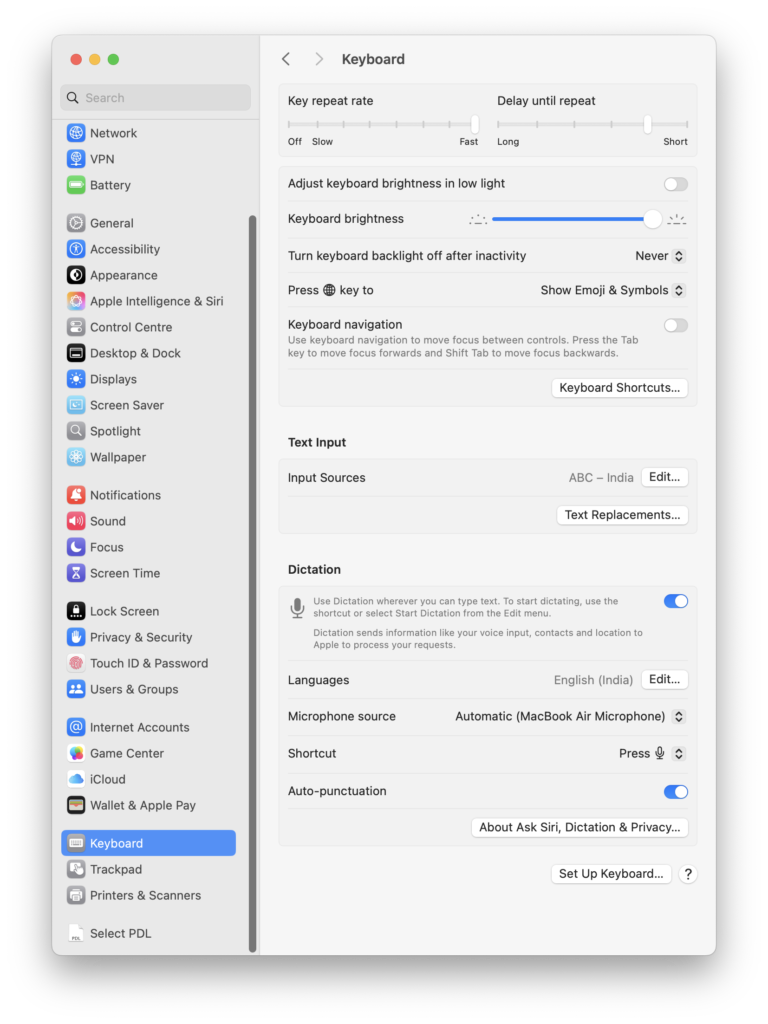
If these are cranked up too far to the fast side, it could be registering repeated keystrokes just because you’re holding the key a little longer than you realized.
Try setting “Key Repeat” to Slow and “Delay Until Repeat” to Long.
Then test out your typing and see if it’s better.
2. Update Your macOS
We say it a lot, but really—it’s that important. An outdated macOS might have bugs that mess with keyboard input.
To check for updates:
-
Click the Apple menu > System Settings.
-
Go to General > Software Update.
-
If there’s an update available, install it.
Sometimes Apple quietly fixes keyboard responsiveness issues in these updates—especially for newer models or firmware-related bugs.
3. Clean That Keyboard!
You’d be amazed what a few crumbs, dust particles, or a stray eyelash can do to your keyboard. Cleaning it properly can solve the issue instantly.
Here’s how to clean your MacBook keyboard safely:
-
Turn off your MacBook (don’t skip this step!).
-
Hold the Mac at a 75-degree angle—not fully upright, but close.
-
Use a can of compressed air to blow between the keys in a zigzag motion.
-
Do this for each side of the keyboard, turning it over a few times.
-
For stubborn gunk, gently use a soft brush or a microfiber cloth.
Pro Tip: Avoid using vacuum cleaners or wet cloths. You don’t want to push dust deeper into the mechanism or risk liquid damage.
4. Reset Keyboard Settings
If you’ve been tinkering with input sources or using custom shortcuts, it might be time for a clean slate.
To reset:
-
Go to System Settings > Keyboard > Input Sources.
-
Make sure you’ve got the correct layout (typically U.S. or ABC) and remove any you don’t use.
-
Restart your Mac and see if that helps.
5. Disable “Slow Keys”
Sometimes, a hidden setting might be the reason your Mac responds weirdly to typing.
To disable Slow Keys:
-
Go to System Settings > Accessibility > Keyboard.
-
Make sure Slow Keys is turned off.
When this is on, it adds a delay between when you press a key and when it registers—making it feel like double letters or delayed spaces.
6. Use an External Keyboard (Temporary Fix)
This one’s not a fix, but more like a band-aid if you’re in the middle of work or can’t afford a break.
Plug in a Bluetooth or USB keyboard. macOS will automatically recognize it, and you’ll be typing error-free until you sort out the main keyboard.
7. Check Apple’s Free Repair Program
If you’re using a MacBook from the 2015–2019 era, there’s a chance your keyboard issue qualifies for a free repair under Apple’s Keyboard Service Program.
Check your eligibility:
-
Go to Apple’s keyboard repair program page.
-
Enter your Mac’s serial number.
-
If eligible, Apple will replace your keyboard for free—even if your warranty is over.
They usually replace the whole top case, which includes the keyboard and battery. Not bad, right?
When All Else Fails – Visit an Apple Service Center
If nothing’s worked so far, there’s a solid chance this is a hardware issue—something internal that’s not going to get better with software tweaks.
Book an appointment at the Apple Store or an authorized service provider. They’ll run a diagnostic and let you know what’s up. If you’re lucky and still under AppleCare+, the repair might even be free.
How to Prevent This in the Future
Here’s how to keep your keyboard healthy going forward:
-
Clean regularly: A gentle wipe-down every week helps avoid dust buildup.
-
Avoid eating over your MacBook: As tempting as it is to snack while working, crumbs are keyboard killers.
-
Update your macOS often: New updates often fix old issues, including input problems.
-
Use a keyboard protector: Especially if you’re using your Mac outdoors or in messy environments.
Wrapping It Up
Dealing with a Macbook typing extra letters or any keyboard that double types or adds random spaces can be seriously annoying—but it’s not the end of the world. Start with the simple stuff: adjust your settings, update macOS, and clean it thoroughly. If the problem sticks around, then check for repair eligibility or get professional help.
Read More: 8 Simple ways to fix “your system has run out of application memory”